
Step-By-Step Guide: How To Add A Shadow In Canva
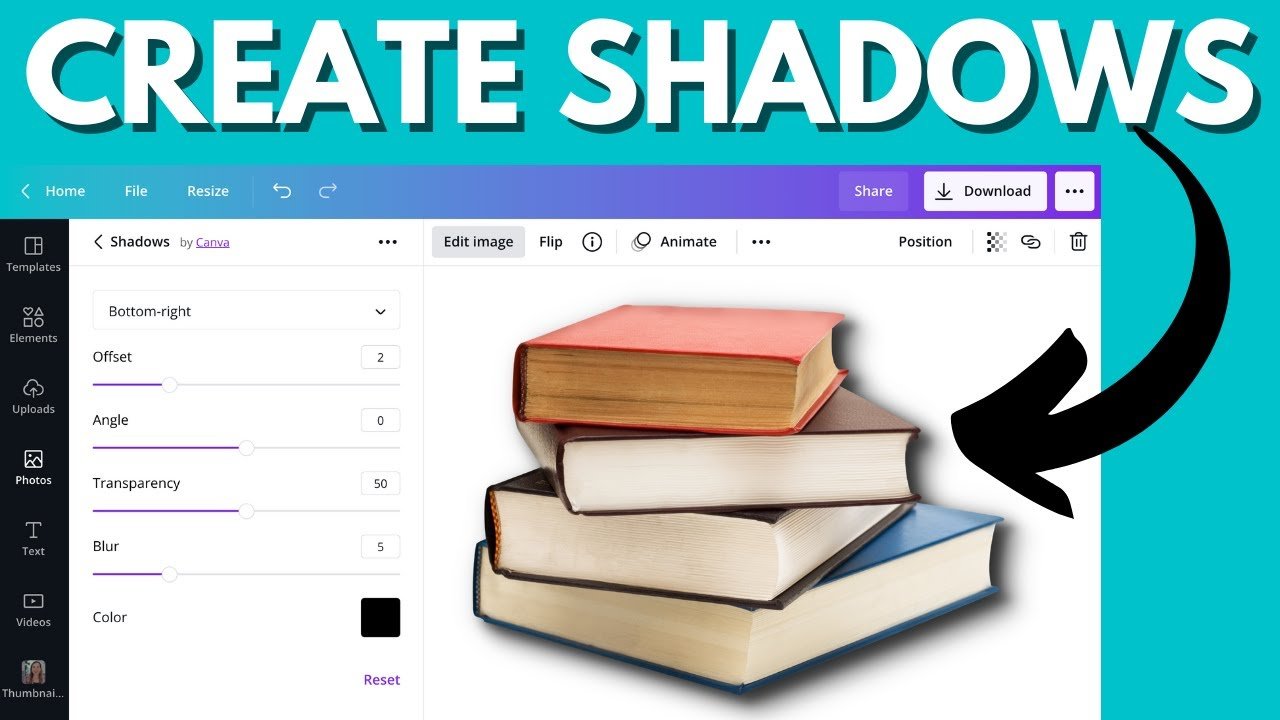
To add a shadow in Canva, simply follow these easy steps. Shadows can enhance your designs, providing depth and visual interest. Start by selecting the element you want to add a shadow to in Canva. Next, go to the toolbar and click on the “Effects” option. Then, choose the “Shadow” tab and adjust the settings to achieve the desired shadow effect. Adding shadows in Canva is a great way to make your designs pop and stand out, giving them a professional touch.

How to Add a Shadow in Canva: A Step-by-Step Guide
Welcome, budding designers! Have you ever wondered how to make your designs pop out and create a sense of depth and dimension? Adding shadows can be a game-changer in elevating the visual appeal of your creations. In this guide, we will delve into the world of shadows in Canva, a user-friendly design tool that allows you to unleash your creativity effortlessly. So, let’s shine a light on how to master the art of adding shadows in Canva!
Understanding Shadows in Design
Before we jump into the practical steps of adding shadows in Canva, let’s take a moment to understand the significance of shadows in design. Shadows add depth, realism, and visual interest to your creations. They help create a sense of hierarchy, highlighting certain elements while adding a touch of sophistication to your design. Whether you’re working on a social media graphic, poster, or presentation slide, shadows can make your design stand out from the crowd.
Getting Started with Canva
If you’re new to Canva, fear not! It’s a user-friendly platform that offers a wide range of design possibilities, including adding shadows to your elements. To begin, log in to your Canva account or sign up for free if you’re a newcomer. Once you’re in, create a new design or open an existing project where you want to add shadows.
Adding Shadows to Text
One of the simplest ways to enhance your design is by adding shadows to text elements. Follow these steps to give your text a subtle shadow effect:
- Select the text you want to add a shadow to.
- Click on the “Effects” option in the top toolbar.
- Choose the “Shadow” effect.
- Adjust the shadow settings, including color, distance, blur, and opacity, to customize the shadow’s appearance.
- Voila! Your text now has a shadow that adds depth and dimension.
Enhancing Shapes and Icons with Shadows
Shapes and icons are other design elements that can benefit greatly from the addition of shadows. Here’s how you can add shadows to shapes and icons in Canva:
- Select the shape or icon you want to apply a shadow to.
- Go to the “Effects” option in the top toolbar.
- Choose the “Shadow” effect.
- Customize the shadow settings to suit your design, playing with parameters like color, distance, blur, and opacity.
- Marvel at how the shadow transforms your shape or icon, giving it a three-dimensional look.
Creating Layered Shadow Effects
For more advanced shadow effects, consider creating layered shadows that add depth and complexity to your design. Here’s how you can achieve this in Canva:
- Duplicate the element you want to apply a layered shadow to.
- Apply a shadow to each duplicate, varying the settings to create different shadow effects.
- Arrange the duplicates behind the original element, creating a layered effect that adds depth and visual interest.
- Play around with the positioning and settings of each shadow layer to achieve the desired look.
- Step back and admire your design prowess as the layered shadows elevate your creation.
Experimenting with Light and Shadow
Once you’ve mastered the basics of adding shadows in Canva, it’s time to let your creativity soar by experimenting with light and shadow effects. Consider the following tips to take your design to the next level:
- Play with different shadow colors to create unique effects.
- Experiment with shadow angles to simulate natural lighting.
- Combine multiple shadow effects to achieve complex visuals.
- Use shadows sparingly to avoid overwhelming your design.
Remember, practice makes perfect, so don’t be afraid to experiment and push the boundaries of your creativity when it comes to adding shadows in Canva.
Adding shadows in Canva is a simple yet powerful way to enhance your designs and make them visually captivating. Whether you’re a seasoned designer or just starting on your creative journey, mastering the art of shadows can take your projects to new heights. So, the next time you’re working on a design in Canva, don’t forget to play around with shadows and see how they can transform your creations. Happy designing!
How To Add A Shadow To Images Using Canva : Canva Tutorials For Beginners
Frequently Asked Questions
How can I add a shadow effect to an element in Canva?
To add a shadow effect in Canva, select the element you want to apply the shadow to. Then, click on the “Effects” option in the toolbar and choose the “Shadow” tab. Adjust the shadow settings such as color, opacity, distance, blur, and angle to customize the shadow effect as desired.
Is it possible to change the color of the shadow in Canva?
Yes, you can change the color of the shadow in Canva. Once you’ve added a shadow effect to an element, click on the color swatch next to the shadow settings. A color picker will appear, allowing you to select a new color for the shadow to match your design’s aesthetic.
Can I adjust the distance and angle of the shadow in Canva?
Absolutely! In Canva, you have the flexibility to adjust both the distance and angle of the shadow effect. Simply use the sliders or input fields provided in the shadow settings to modify the distance (how far the shadow extends) and angle (direction of the shadow in relation to the element).
Final Thoughts
Adding a shadow in Canva is a simple yet impactful way to enhance your designs. By following a few easy steps, you can create depth and dimension to your elements. Remember to adjust the intensity and direction of the shadow to suit your design aesthetic. Experiment with different shadow settings to achieve the desired effect. Mastering how to add a shadow in Canva can take your designs to the next level effortlessly.
